This weekend I'm at the [Go Code Colorado][1] Challenge Weekend event in Durango. The purpose of Go Code Colorado 2016 is for teams to build something useful for businesses using one or more of the [Colorado Public Datasets][2]. Some teams are using Salesforce for the back-office / business process side of the app they are building. So I decided to see if I could pull a Colorado Public Dataset into Salesforce. Turns out it's super easy! Just follow these steps:
1. [Sign up for a Salesforce Developer Edition][3]
2. [Create a new External Data Source][4] with the following field values:
> External Data Source = Colorado Public Data
> Name = Colorado\_Public\_Data
> Type = Lightning Connect: OData 2.0
> URL = https://data.colorado.gov/OData.svc
> Special Compatibility = Socrata
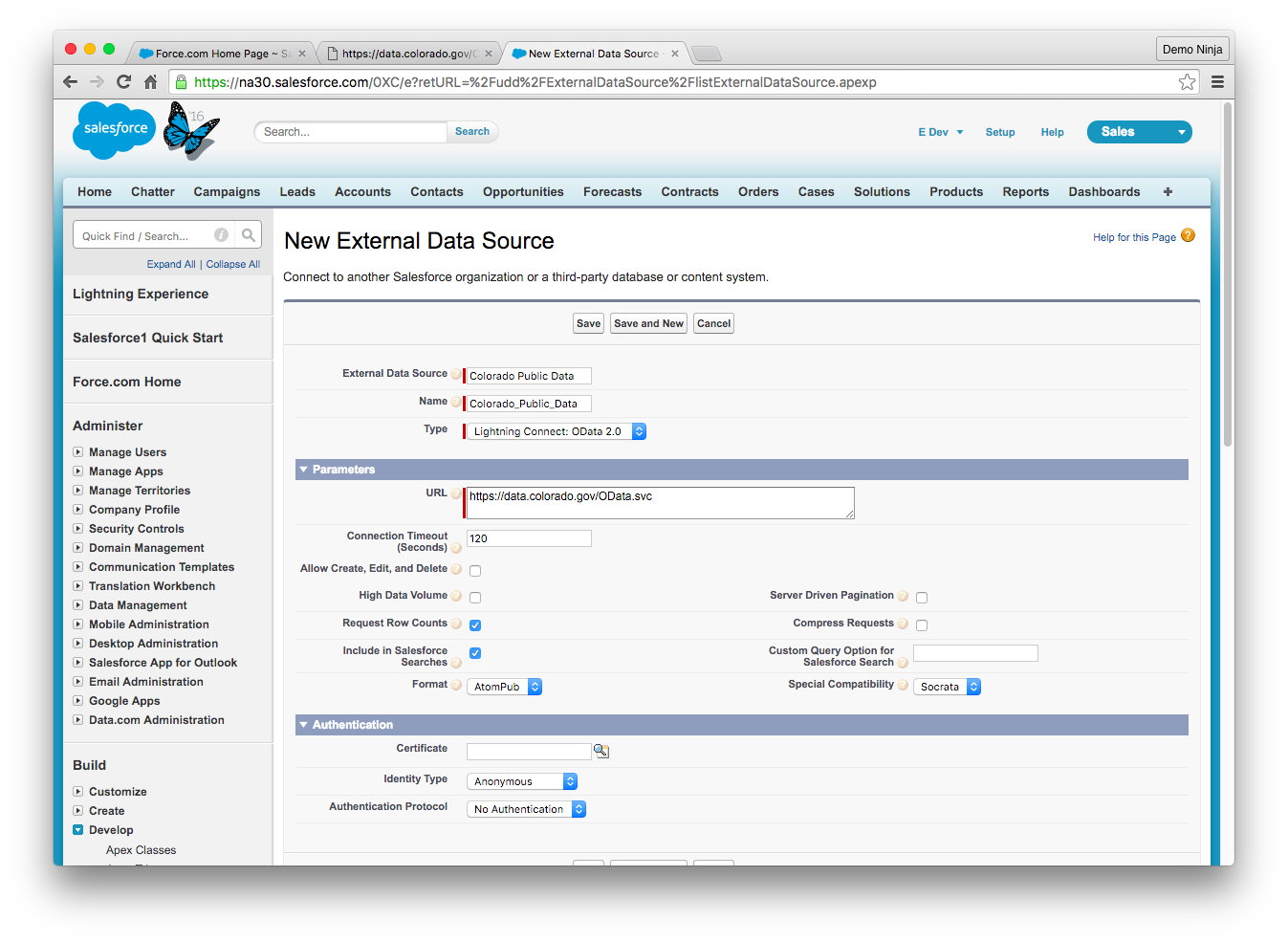 3. Save the new External Data Source and then hit "Validate and Sync" to fetch the metadata for the services.
4. Select one or more tables from the list. A good table to test with is the "Occupational Employment Statistics" dataset.
3. Save the new External Data Source and then hit "Validate and Sync" to fetch the metadata for the services.
4. Select one or more tables from the list. A good table to test with is the "Occupational Employment Statistics" dataset.
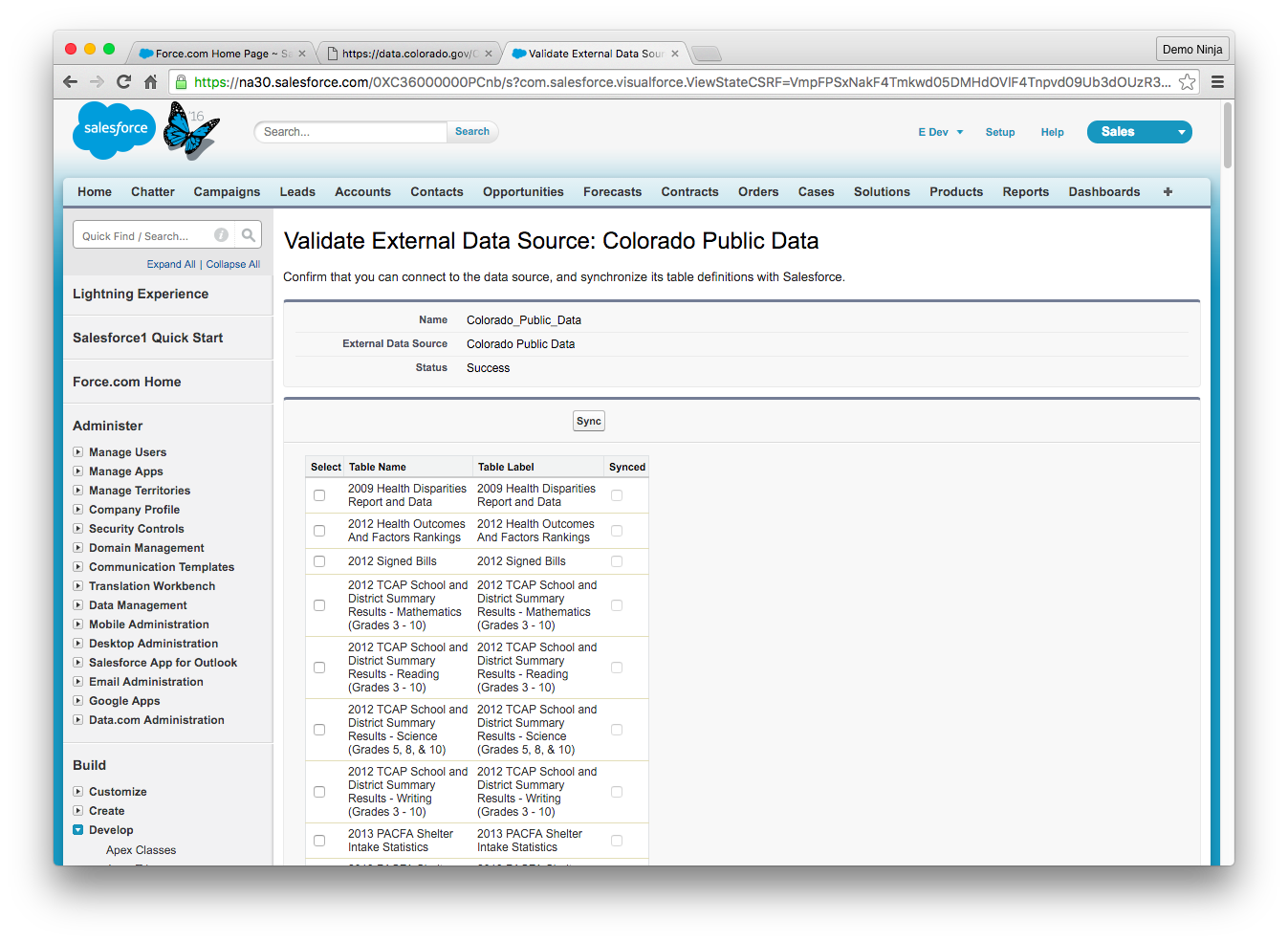 5. Sync the table and you should see a new "External Object" in the [list of External Objects][5].
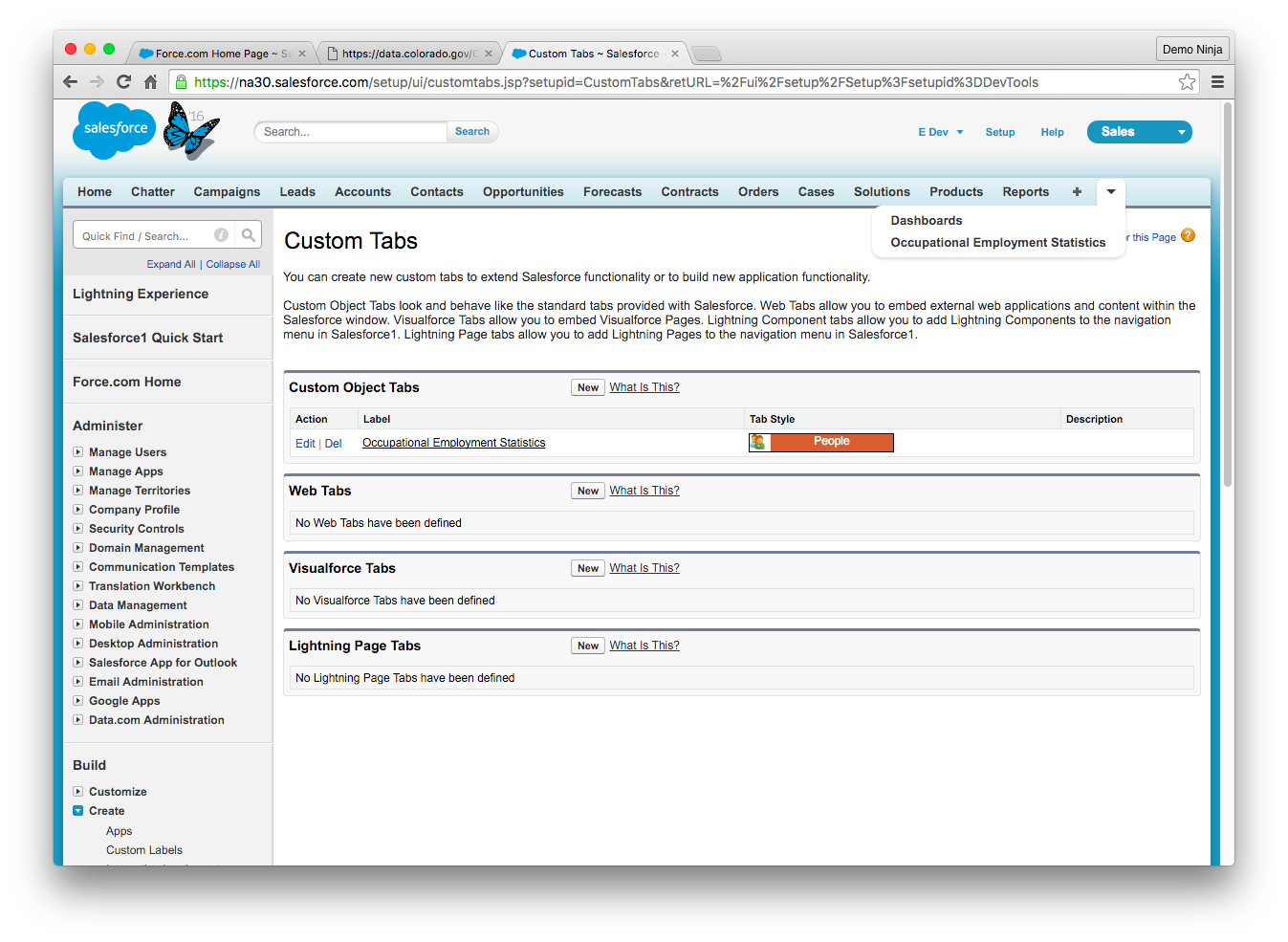
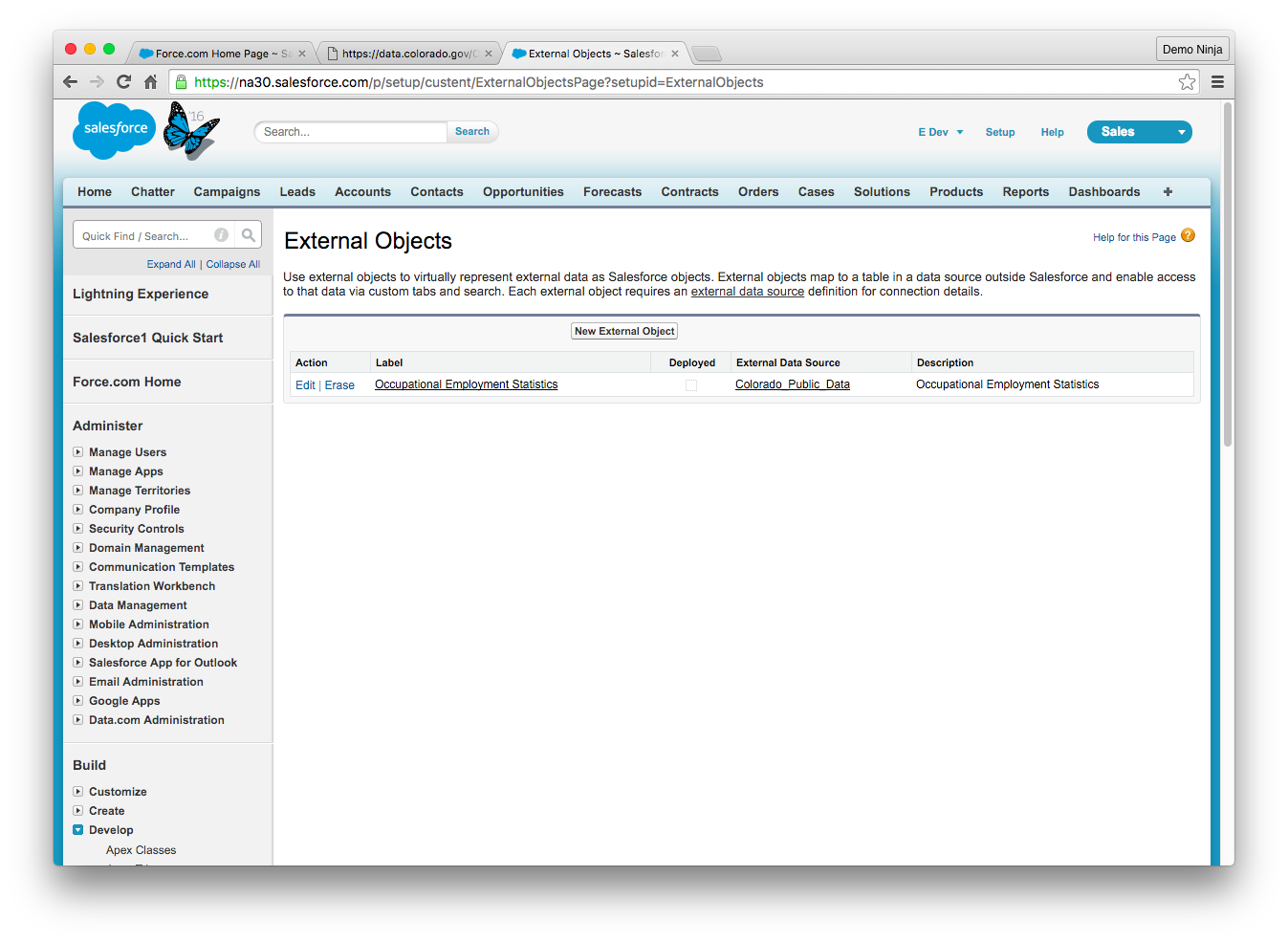 6. The data is now available in Salesforce. An easy way to see the dataset is to create a tab in the Salesforce UI. On the [Custom Tabs Setup page][6] create a new Custom Object Tab for the "Occupational Employment Statistics" object and select a Tab Style:
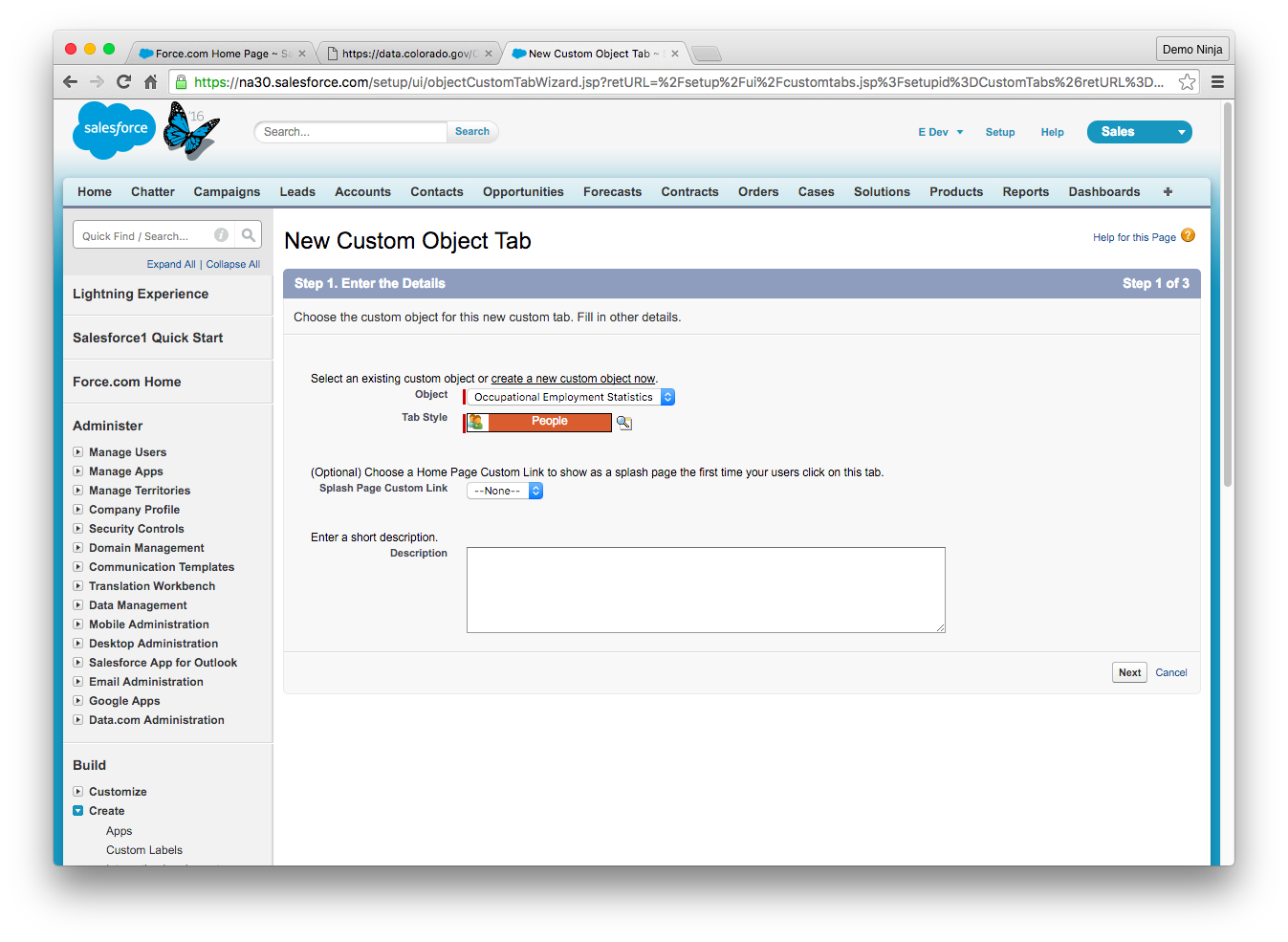 7. Complete the creation of the tab (select Next, Next, Save).
8. Select the "Occupational Employment Statistics" tab (which might be in a drop-down menu depending on the width of your browser:
7. Complete the creation of the tab (select Next, Next, Save).
8. Select the "Occupational Employment Statistics" tab (which might be in a drop-down menu depending on the width of your browser:
 9. Next to the View - All selector, hit "Go!" to fetch the data from the Colorado Public Data source. You'll now see the records:
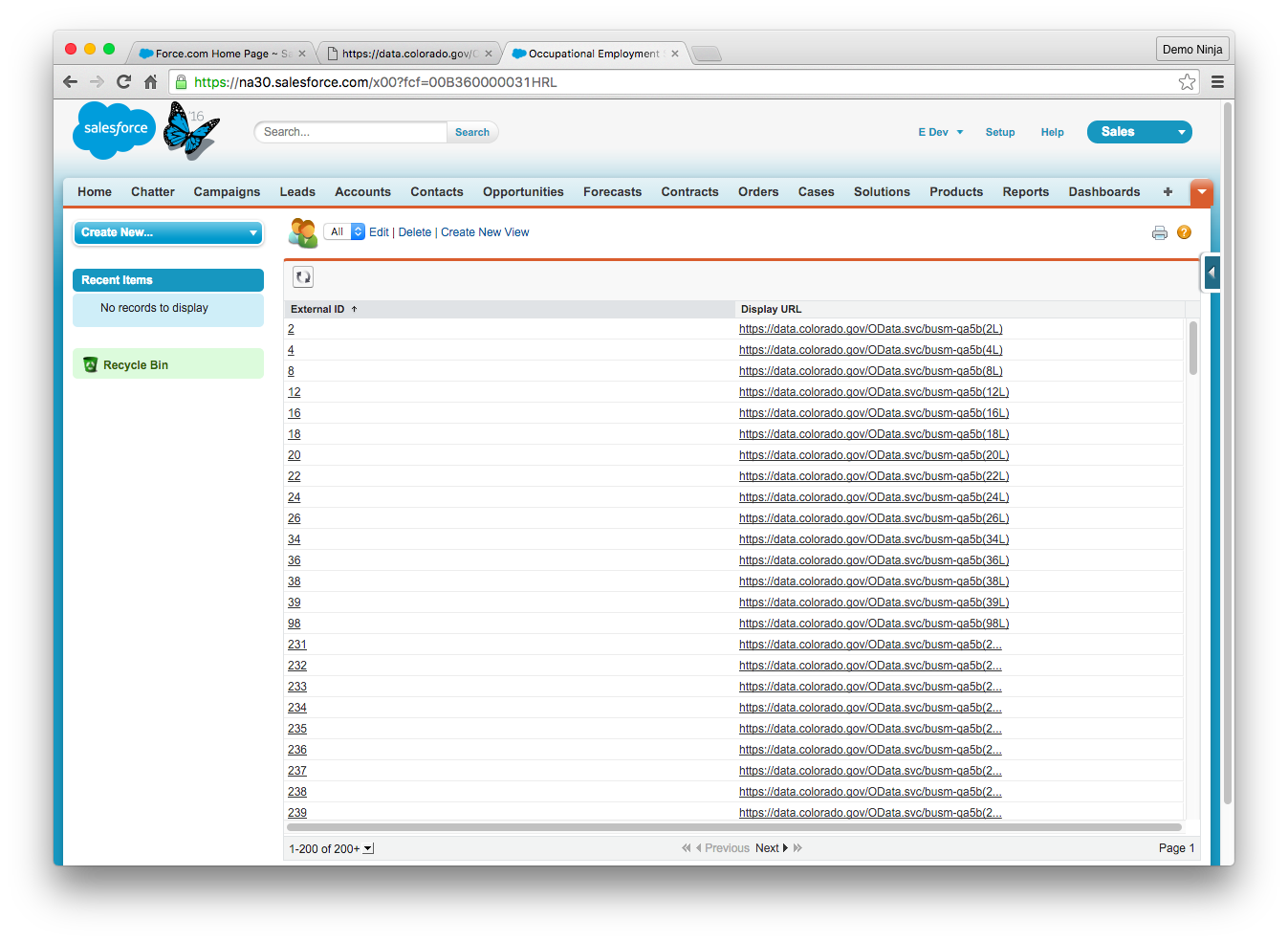 Note: The columns displayed in this view can be customized in the External Object's Search Layout.
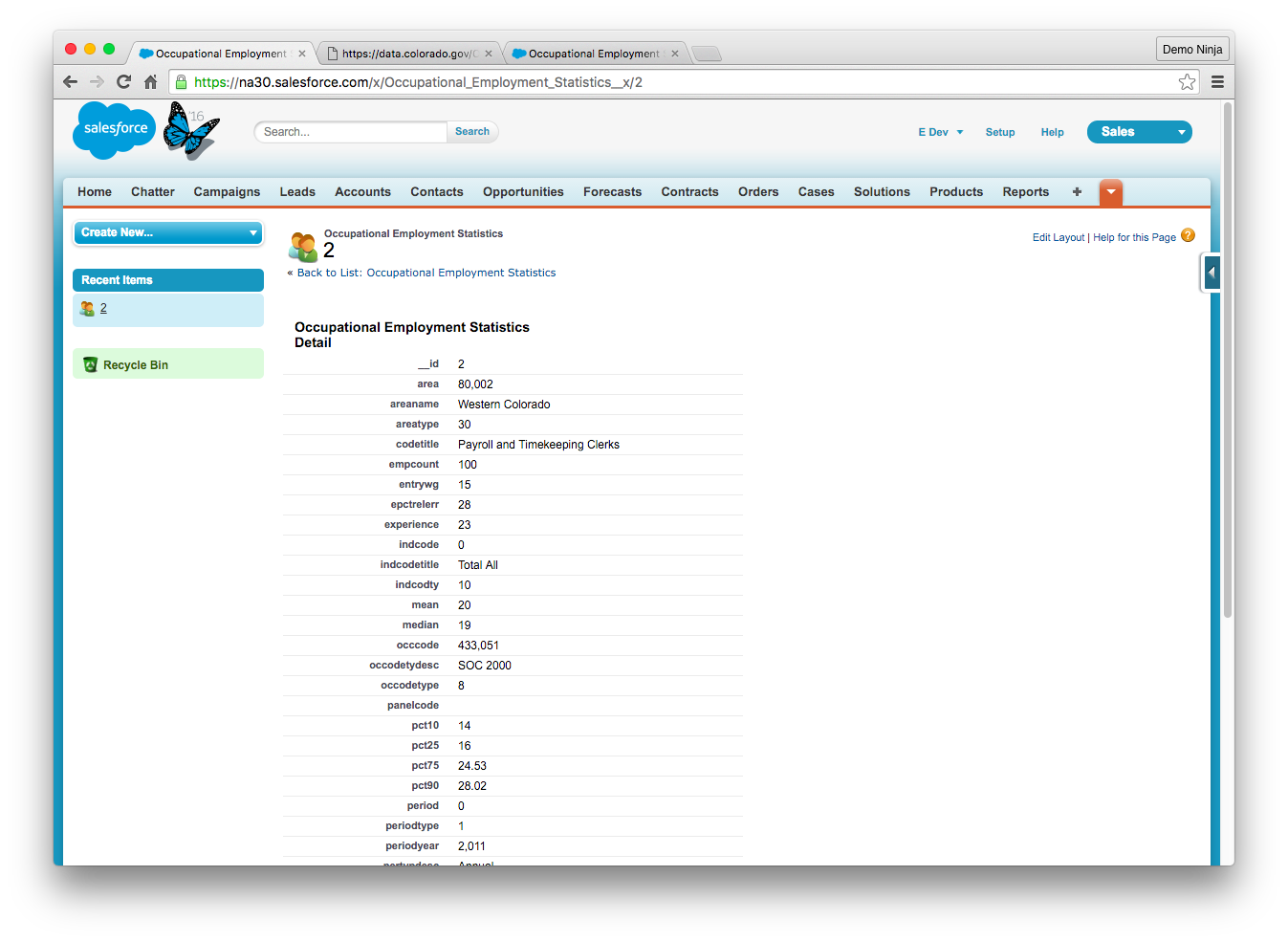
10. Selecting a record's ID will display the record details:
Note: The columns displayed in this view can be customized in the External Object's Search Layout.
10. Selecting a record's ID will display the record details:
 That's it! Now you can build all sorts of business processes and other employee-facing interactions around the public data.
Good luck to all of the Go Code Colorado teams!
[1]: http://gocode.colorado.gov/
[2]: https://data.colorado.gov
[3]: https://developer.salesforce.com/signup
[4]: https://login.salesforce.com/0XC?setupid=ExternalDataSource
[5]: https://login.salesforce.com/p/setup/custent/ExternalObjectsPage?setupid=ExternalObjects
[6]: https://login.salesforce.com/setup/ui/customtabs.jsp?setupid=CustomTabs
That's it! Now you can build all sorts of business processes and other employee-facing interactions around the public data.
Good luck to all of the Go Code Colorado teams!
[1]: http://gocode.colorado.gov/
[2]: https://data.colorado.gov
[3]: https://developer.salesforce.com/signup
[4]: https://login.salesforce.com/0XC?setupid=ExternalDataSource
[5]: https://login.salesforce.com/p/setup/custent/ExternalObjectsPage?setupid=ExternalObjects
[6]: https://login.salesforce.com/setup/ui/customtabs.jsp?setupid=CustomTabs